How do I start annotating?
- Open a score and tap the page for the controls.
- Tap Annotate. The annotation tools appear.
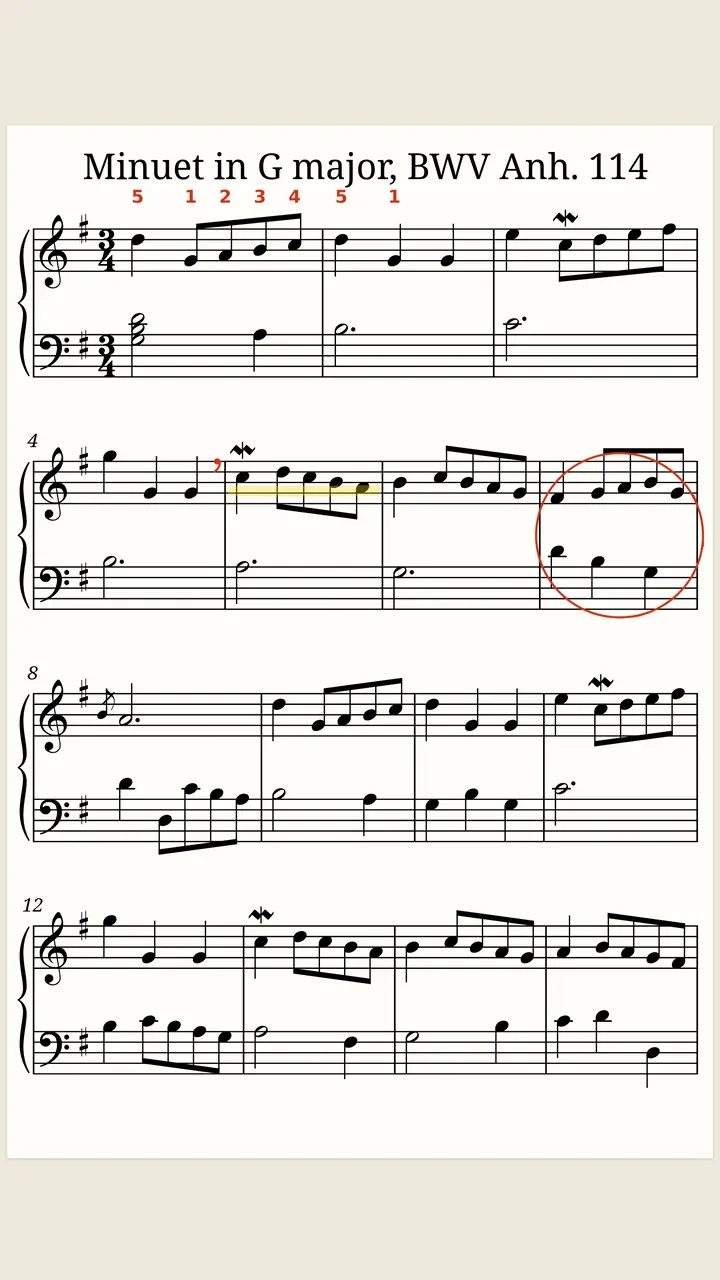
- Pick a tool: Pen, Highlighter, Eraser or Stamps.
- Pick a color and a width, then draw on the page.
- Tap Done, or press Esc, when you finish.
Hide annotations hides your marks without deleting them. Show annotations brings them back. The toolbar can move to the top or the bottom of the screen.
What can I draw with?
- Pen: for circles, arrows and reminders.
- Highlighter: for passages and repeats.
- Eraser: removes whole marks, or parts of marks. Choose which.
- Stamps: Finger numbers, Breath mark, Up-bow, Down-bow, Accent and Turn quickly (V.S.). Tap to place a stamp.
Colors are Graphite, Red, Blue, Green, Purple, Yellow and Pink. Widths run from Fine to Bold.
Undo and Redo are in the toolbar. Clear page removes every mark on the page.
Why do marks stay with their bars?
SheetScroll anchors each mark to the bars under it, not to a spot on the screen. Change the view, make the notes larger or smaller, and the marks move with the music.
Your original file is never changed. Marks live in SheetScroll, and deleting a score deletes its annotations too.
How do I use marks well?
- Give each kind of mark its own color: red for dynamics you keep missing, blue for fingerings, yellow for the passage to repeat.
- Use the highlighter for the bars you want to work on again, and the Breath mark stamp where you plan to breathe.
- Put Turn quickly (V.S.) at a hard page turn so you see it coming. Automatic turns come two beats before the end of the page, and the stamp is your own reminder.
- Keep the pen Fine for fingerings so the notes stay readable, and Bold for a circle you want to see from the stand.
Marks are yours to remove. The eraser works on whole marks or on parts of marks, and Clear page (or Clear pages) wipes the page or pages you are on.
What about a stylus or my finger?
Finger drawing has three settings: Until a stylus is used, Always (two fingers turn pages), and Never. A related switch, Stylus starts annotating in Settings → View and turns, lets a stylus start annotating.
Questions
Do annotations need Pro?
No. Writing on your music is in the free reader, with every format and view.
Will my marks change my PDF?
No. SheetScroll keeps its own copy, and your original is never changed.
Can I add fingerings and bowings?
Yes. Stamps include finger numbers, up-bow, down-bow, breath mark and accent.
Do marks show in every view?
Yes. They stay with their bars in every view.
Related
- SetlistsMake a setlist, put it in order, add notes, share it or export it for forScore. Each piece opens and listens by itself. Setlists are free.
- Practice toolsLoop hard bars, practice one hand at a time, set your own tempo and count in, then see what to work on in your practice history.
- Automatic page turnersEvery way to turn sheet music pages hands-free, from pedals to apps that listen, with the pros and cons of each and how a listening page turner decides.
- StudentsFree courses, free sheet music, loops, hands-separately practice and tempo history. A sheet music app for students that listens and turns the page.