How do I start listening?
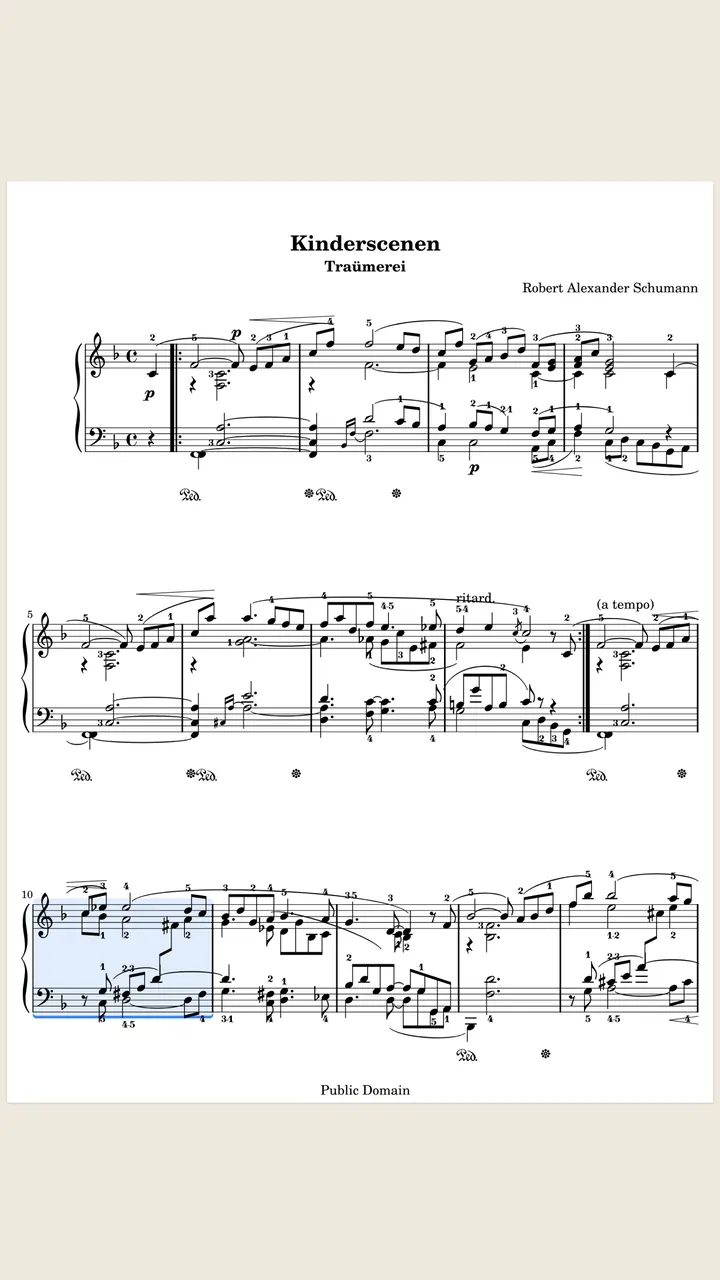
- Open a score. With Listen when a score opens on, which is the default, it is already listening.
- Allow the microphone when asked. If you said no, open your device’s Settings app, tap SheetScroll and turn on Microphone.
- Play. The status line says Listening…, then Following with your bar number.
- To start listening yourself, turn off Listen when a score opens in Settings → Listening, then tap Listen.
Listening and automatic page turns are part of SheetScroll Pro. The free reader still opens every score, and pedals and taps turn pages.
Where should I put the device?
Put it nearer the instrument. SheetScroll tells you when it cannot hear well, and says what to do:
- Too quiet to follow: move closer.
- Too noisy to follow: put the device nearer the instrument, or find a quieter spot.
- The microphone hears nothing: check that it is on and not muted.
- No signal: check the microphone and its permission.
If your device has more than one microphone, pick one in Settings → Listening → Microphone. The default is System default.
What does it hear, and what does it keep?
SheetScroll follows piano, keyboards, strings, woodwinds, brass, voice and guitar, tab included. It follows the music you play, not a metronome, so it waits when you slow down, stop or go back.
Sound is analyzed on your device as it arrives. It is never recorded, stored or sent, and it works in airplane mode. The microphone is on only while a score is open.
Playing a transposing instrument? Settings → Listening has Your instrument. It starts at concert pitch, and the list names B♭ (clarinet, trumpet, soprano sax), E♭ (alto sax) and others. Automatic lets SheetScroll work it out from your playing.
When does it hold the page?
Never early. When SheetScroll is not sure where you are, for example in two passages that sound alike, it holds the page and outlines the places it is choosing between. The status line says Not sure, with the bars.
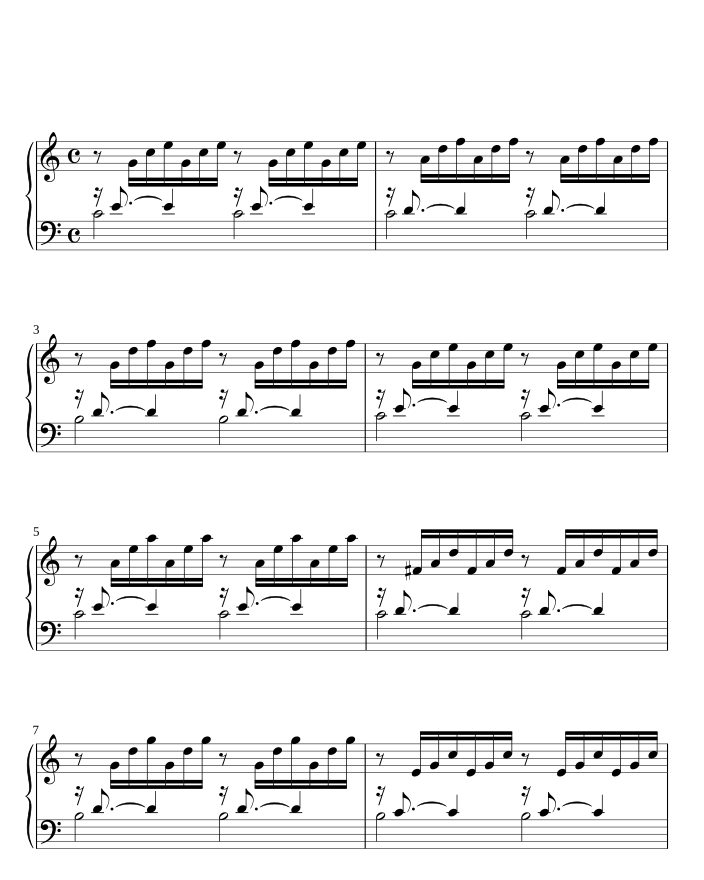
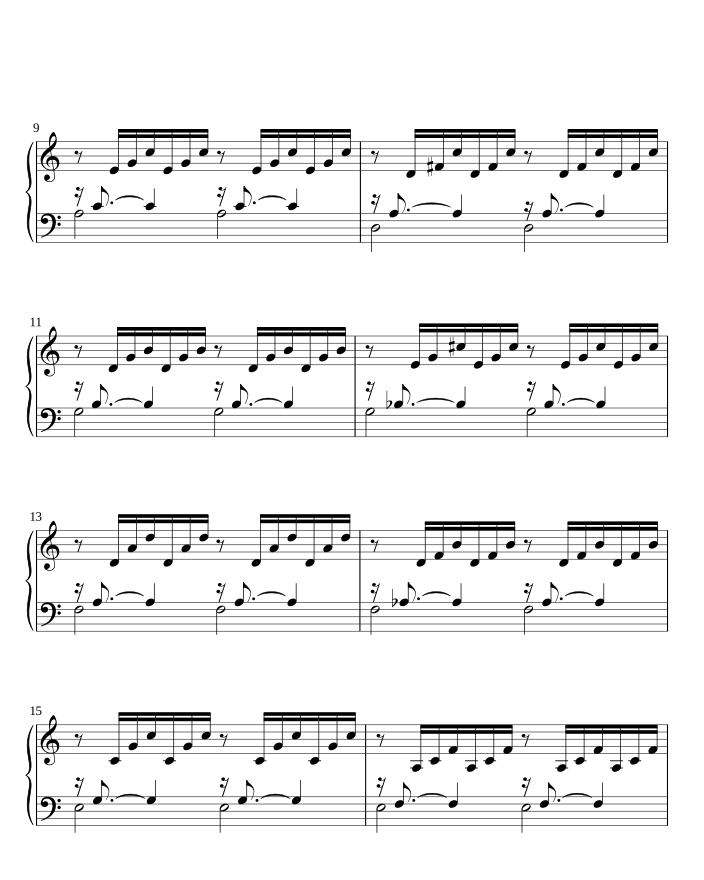
- Keep playing. The music usually tells the places apart, and SheetScroll finds you.
- After you stop, go back or drill a few bars, it finds you again in a moment.
- Searching or Lost: tap where you are.
How does tapping the bar I am on help?
A tap on a bar tells SheetScroll where you are at once. Taps and pedal presses always win over listening, and each one is a fresh fix on your place.
- Find the bar you are playing.
- Tap it.
- Keep playing. SheetScroll follows from there.
When you are not listening yet, you can start from any bar: the button reads Listen from bar and the bar number.
Questions
Does SheetScroll record me?
No. Sound is analyzed on your device as it arrives and is never recorded, stored or sent.
Does it listen when the app is in the background?
No. It listens while the score is open and the app is in front.
What if the room is noisy?
Move the device nearer your instrument, or find a quieter spot. SheetScroll tells you when the room is too noisy to follow.
Can I use a digital piano instead of the microphone?
Yes. Over USB or Bluetooth MIDI, SheetScroll follows the notes themselves. See the MIDI help.
The cursor lags behind me. What can I do?
Raise Cursor delay in Settings → Listening. It is in milliseconds.
Related
- Digital pianos over MIDIConnect a digital piano by USB or Bluetooth MIDI and SheetScroll follows the notes themselves, with no microphone. Here is how to set it up.
- Page turnsThe page turns two beats before the end, never early. How to change that lead, what half-page turns are, and how pedals, taps and turning by hand fit in.
- Automatic page turnersEvery way to turn sheet music pages hands-free, from pedals to apps that listen, with the pros and cons of each and how a listening page turner decides.
- PianistsA sheet music app for pianists: it listens through the mic or a digital piano over MIDI and turns the page two beats early, never early. Free reader.